 View full image ↗
SCREEN 01
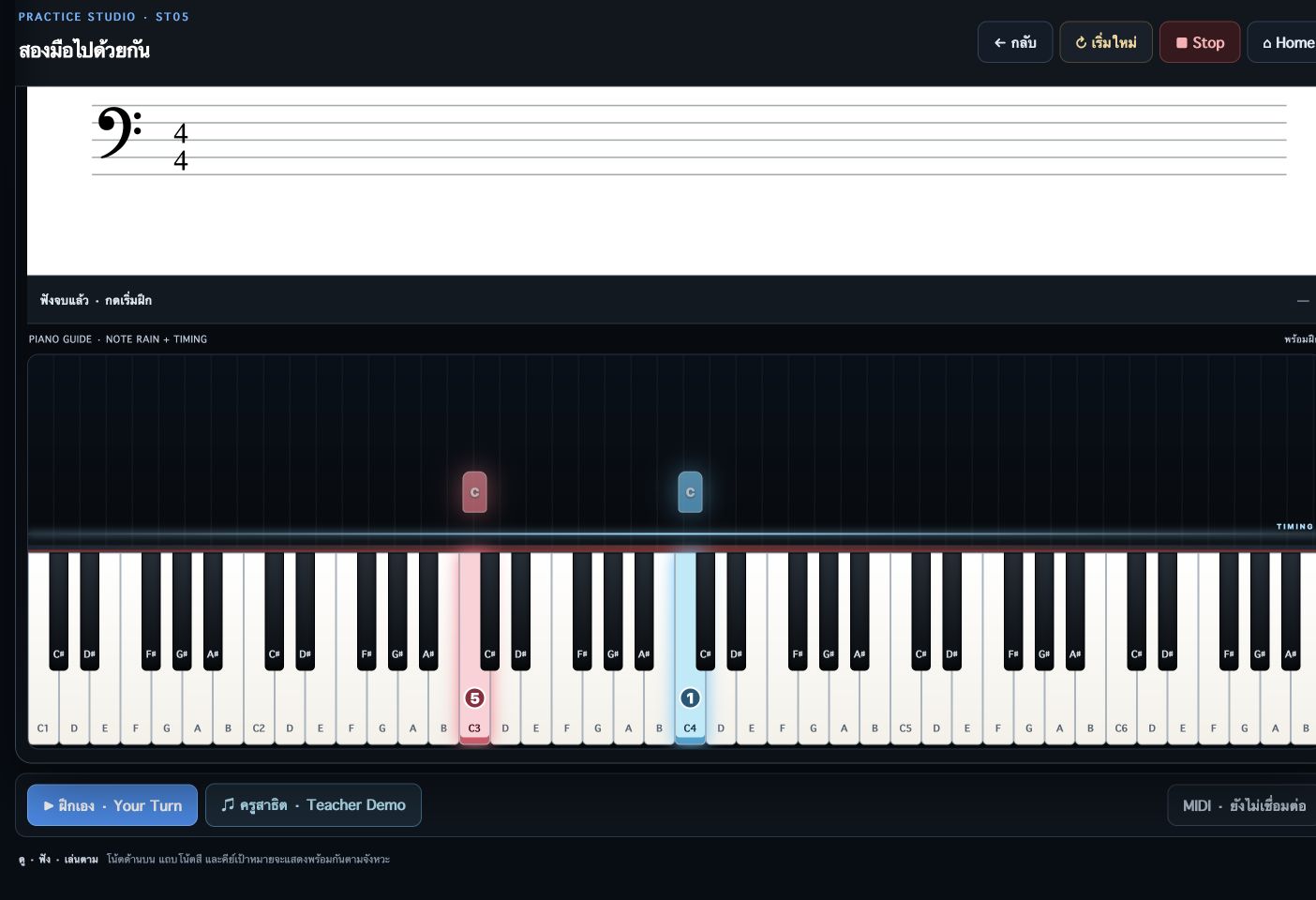
Piano keys, note rain and finger numbers
The practice view separates hand colours and displays finger numbers on target keys, with Teacher Demo and Your Turn controls for following key positions and timing.
Explore three distinct applications: MusicClass Sync Personal for individual practice, MusicClass Sync Classroom for networked teaching, and MyMusicClassroom for curriculum, student practice and music games.
 Inside the application · Full image ↗
A distinct package for this product. Explore its features and actual application screens on this page.
Explore application screens ↓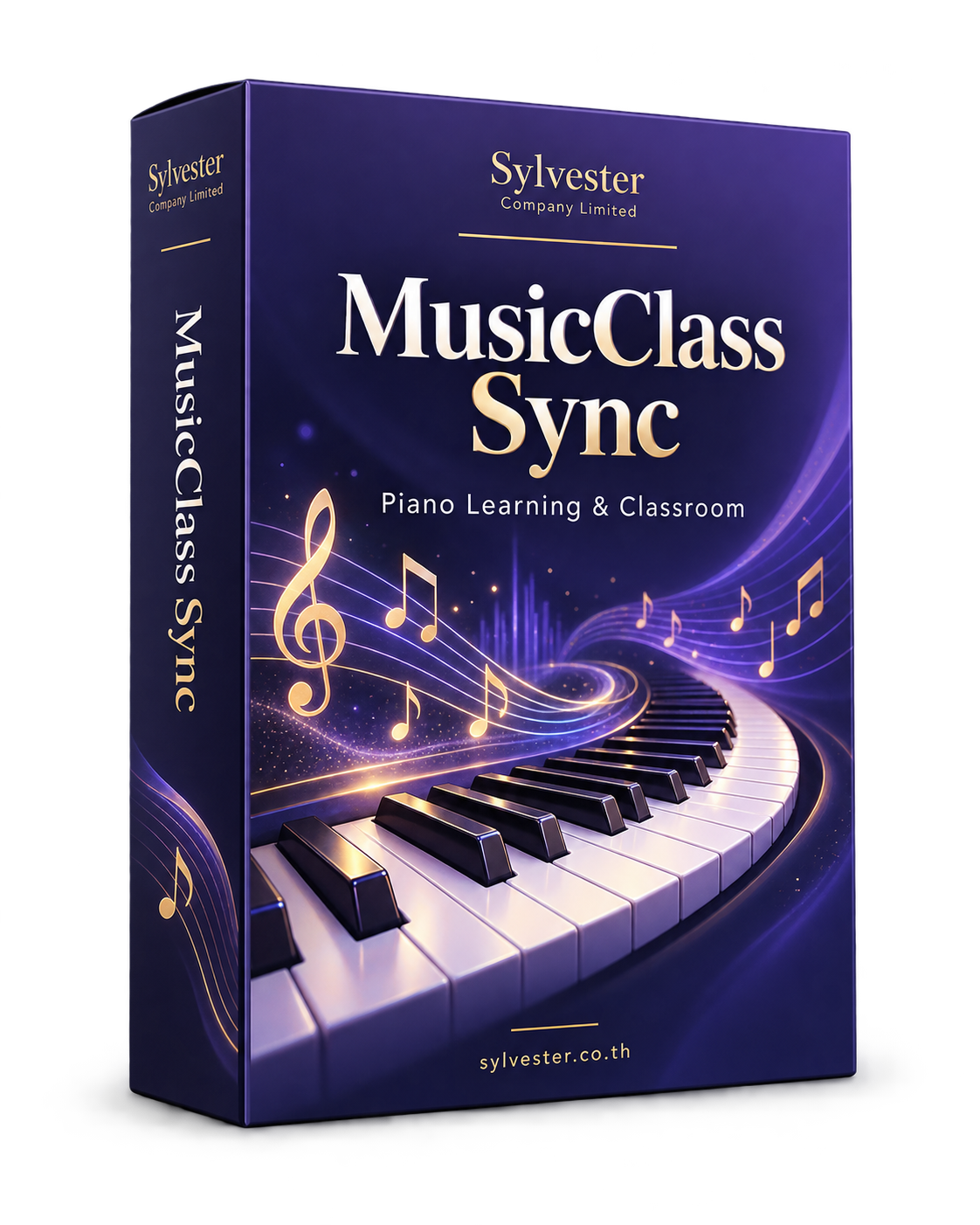
Large images with a description for every screen. Open any image to inspect it at full size.
Read notation, select hands, follow finger numbers and practise songs at your own pace.
View full image ↗The practice view separates hand colours and displays finger numbers on target keys, with Teacher Demo and Your Turn controls for following key positions and timing.
 View full image ↗
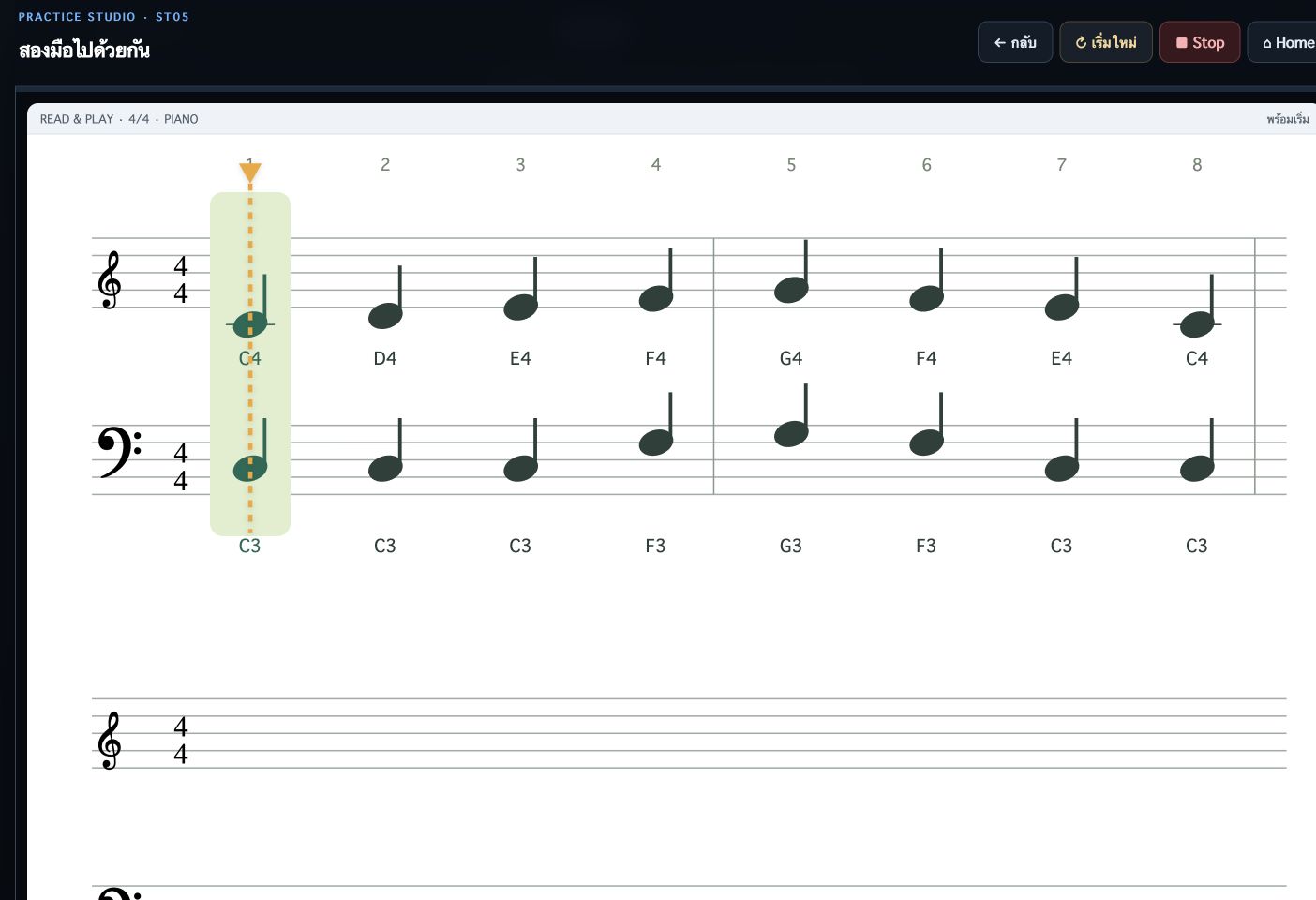
Two-hand exercises display melody and bass notation with a current-position marker to help learners read the relationship between both hands.
 View full image ↗
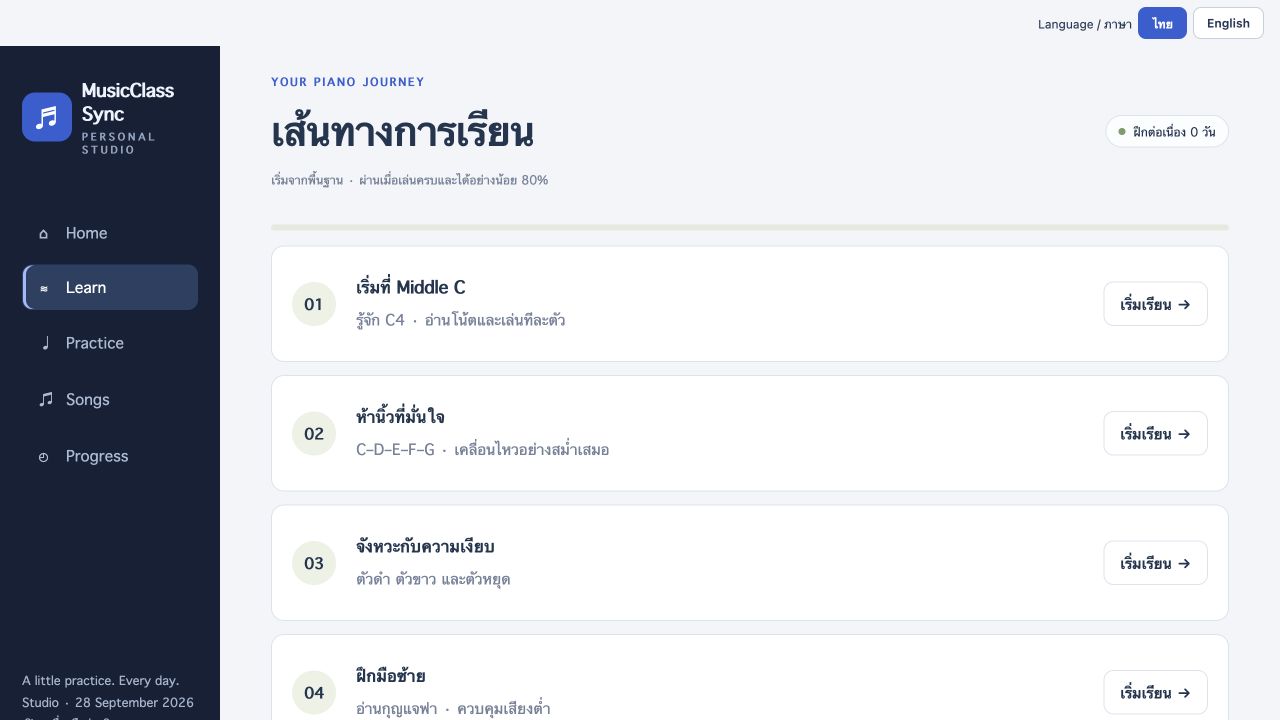
Follow a path from Middle C to two-hand playing and browse lessons by level.
 View full image ↗
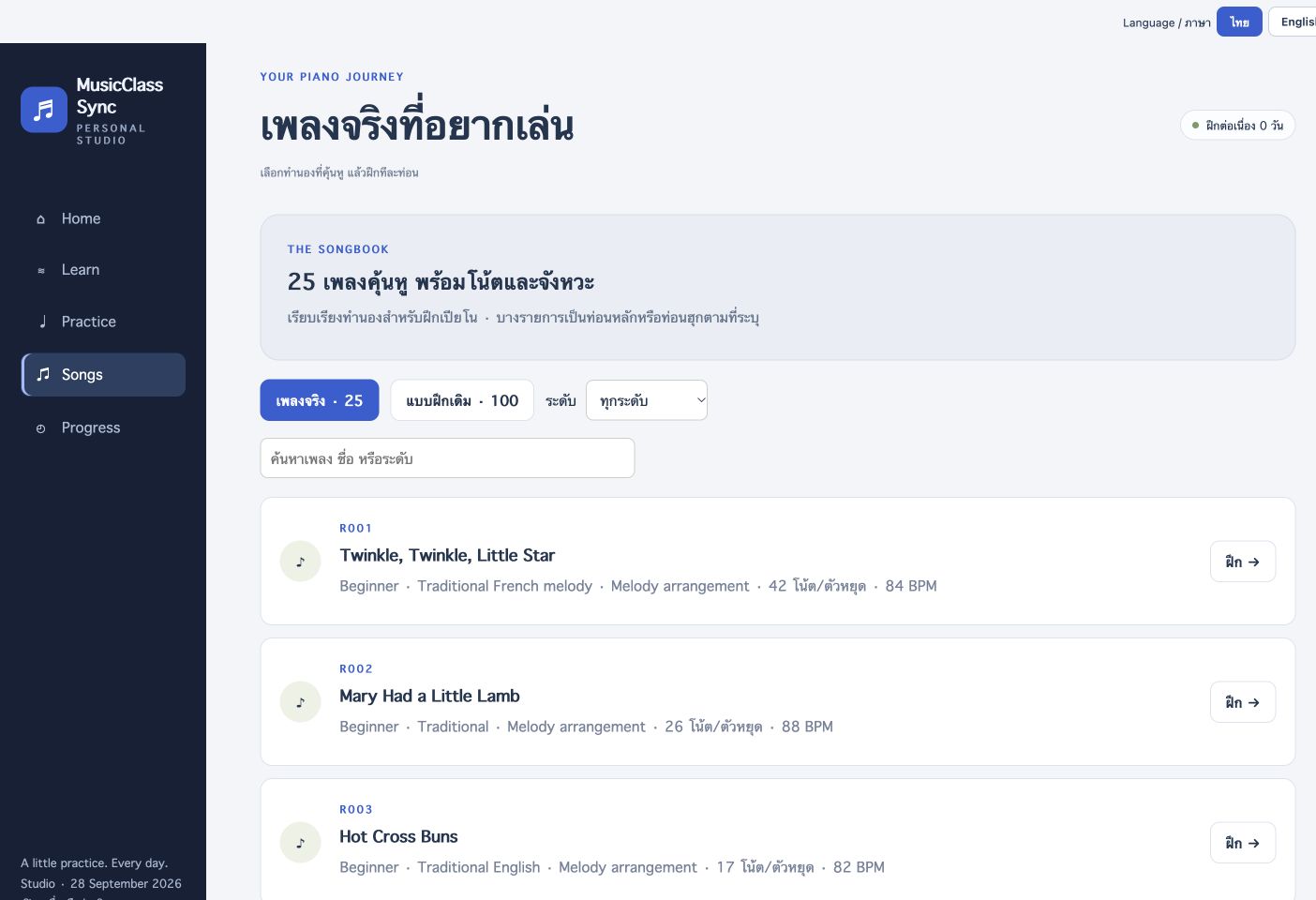
Browse songs showing difficulty, composer, note/rest count and BPM, then open a song directly in practice.
 View full image ↗
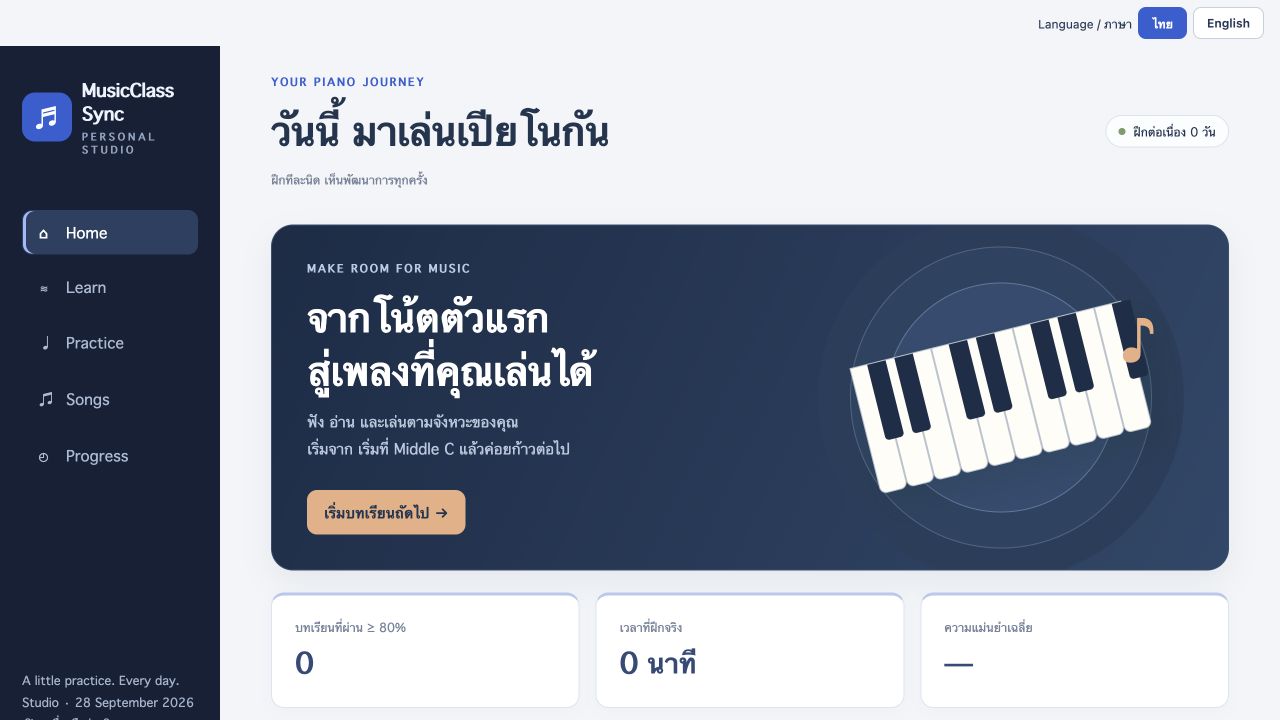
Choose lessons, targeted practice and songs from the home screen.
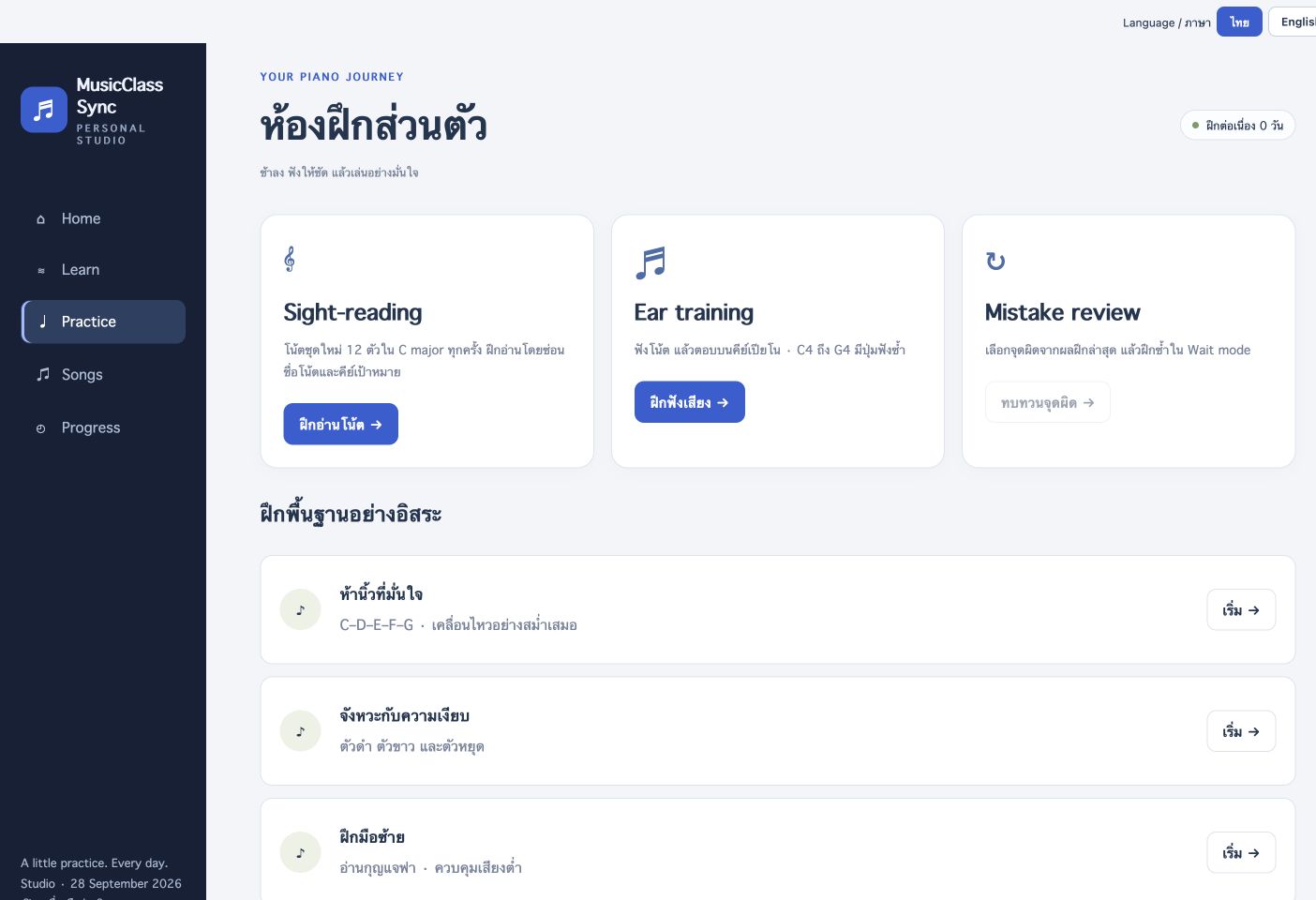 View full image ↗
Choose fresh sight-reading, listening exercises and review of the latest practice mistakes, alongside five-finger, rhythm, left-hand and two-hand exercises.
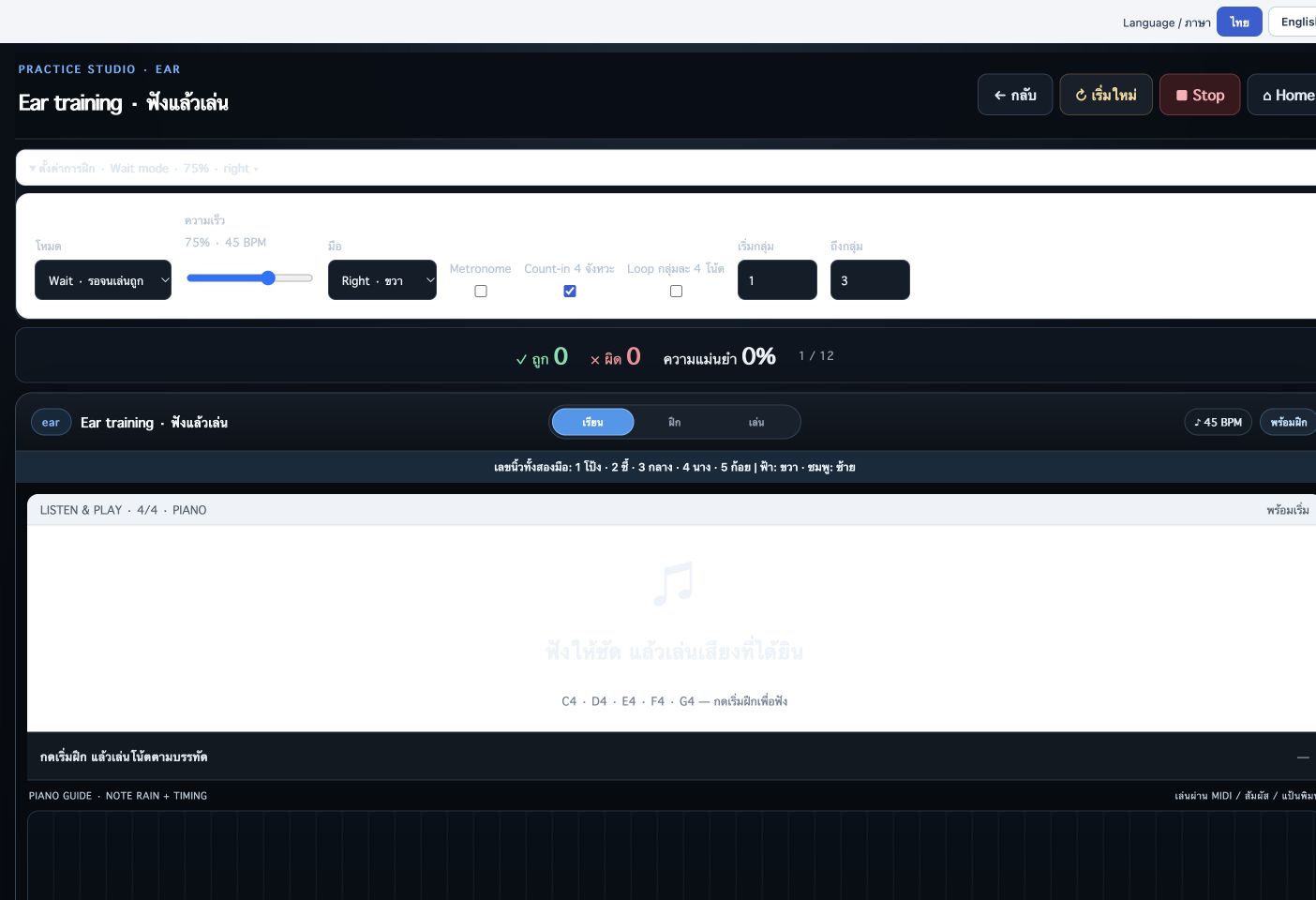 View full image ↗
The C4–G4 listening workspace provides note replay, Wait/Tempo modes, speed controls and an on-screen piano. This capture shows the ready state before a scored session.
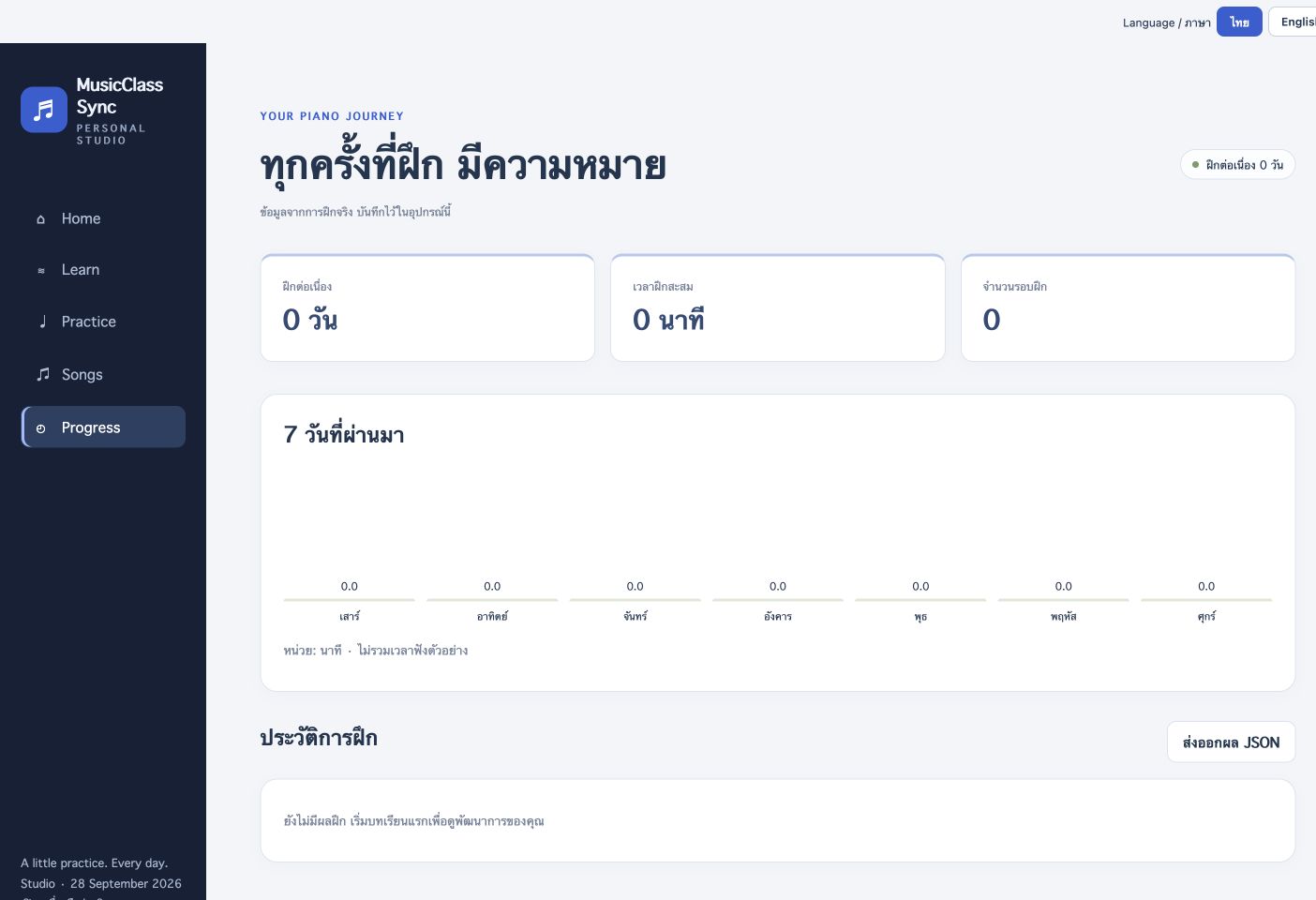 View full image ↗
Review practice streak, accumulated minutes, session count and a seven-day chart, with JSON export. Results are stored on this device; this profile has no completed practice records.
Teachers choose a lesson and target group before starting classroom activities.
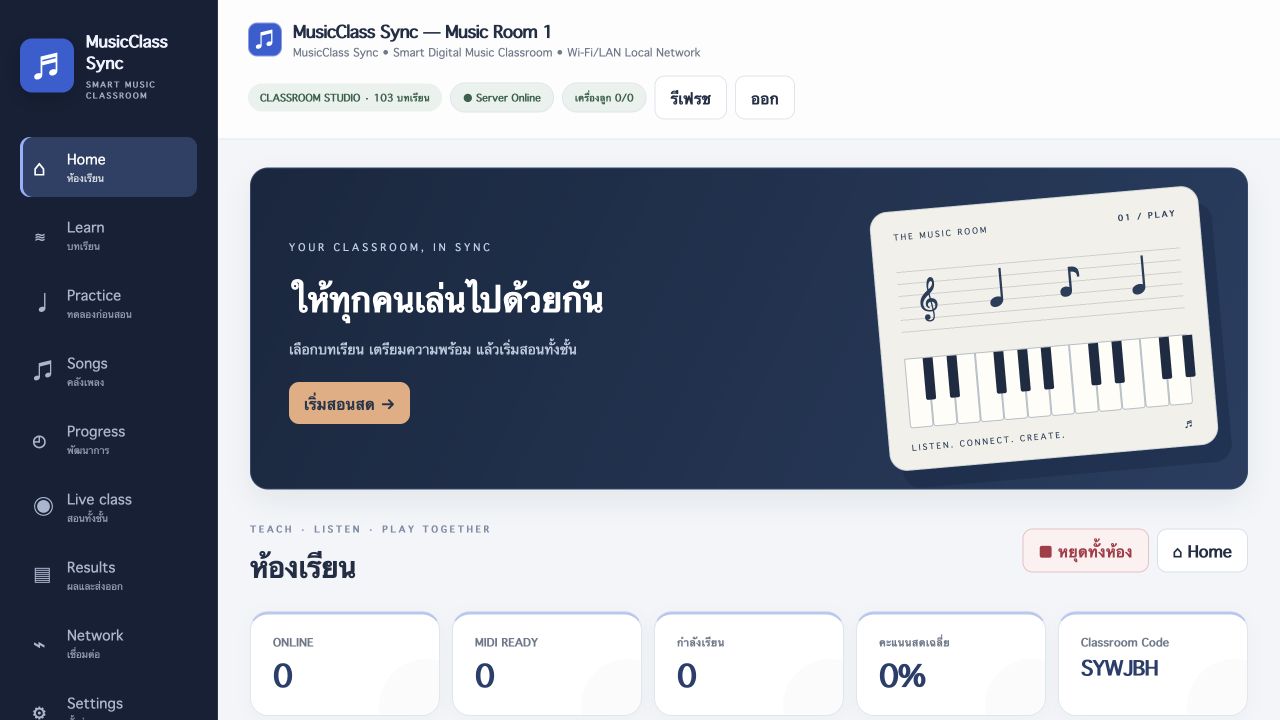 View full image ↗
Deliver lessons, target the whole class or a group and control practice from the teacher dashboard.
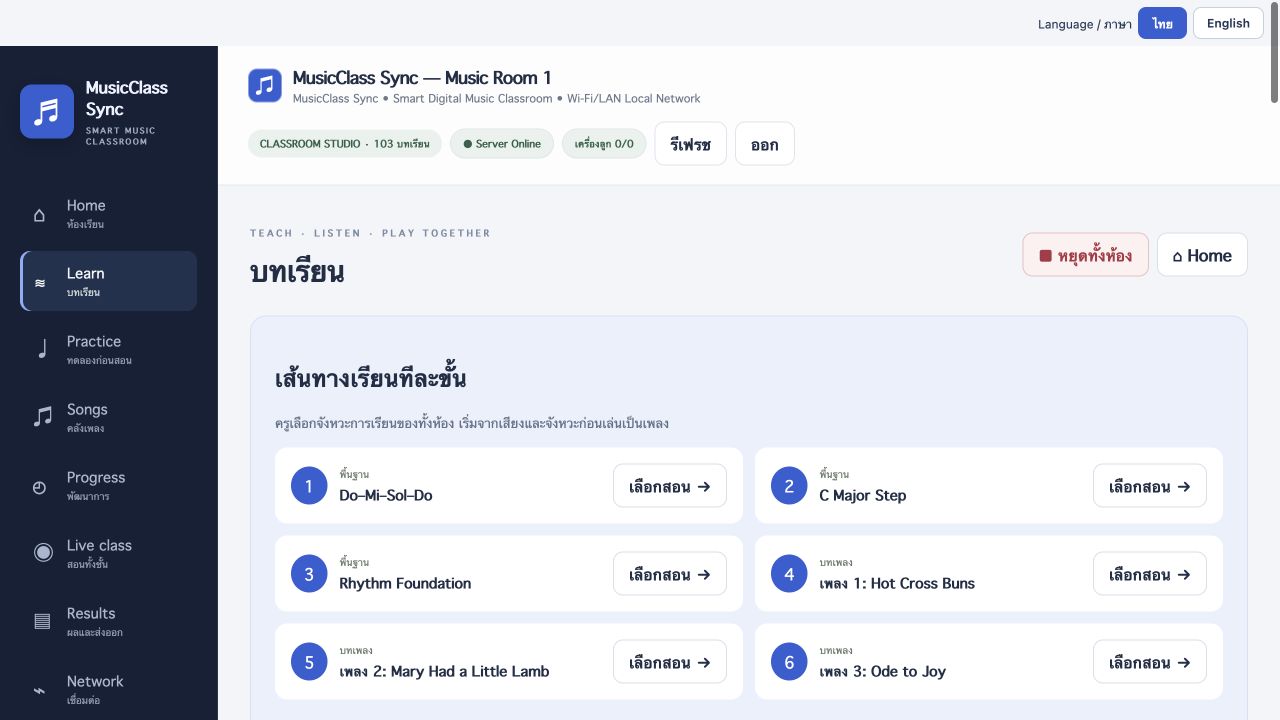 View full image ↗
Manage classroom lesson titles, tempo and note data.
 View full image ↗
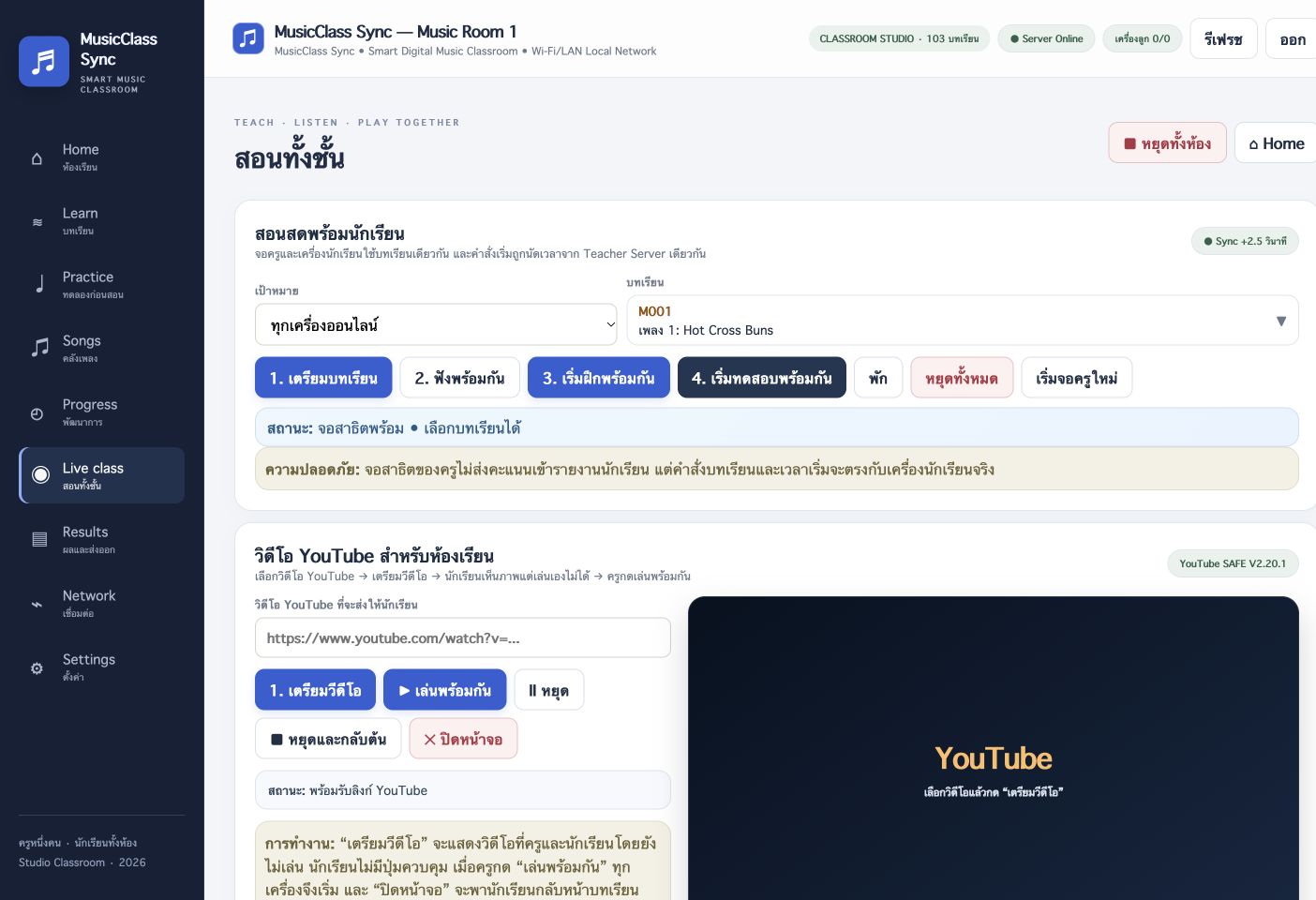
Prepare a lesson, listen, practise or test together; choose the whole class or a group and manage YouTube teaching video. The test server is running without physical student clients.
 View full image ↗
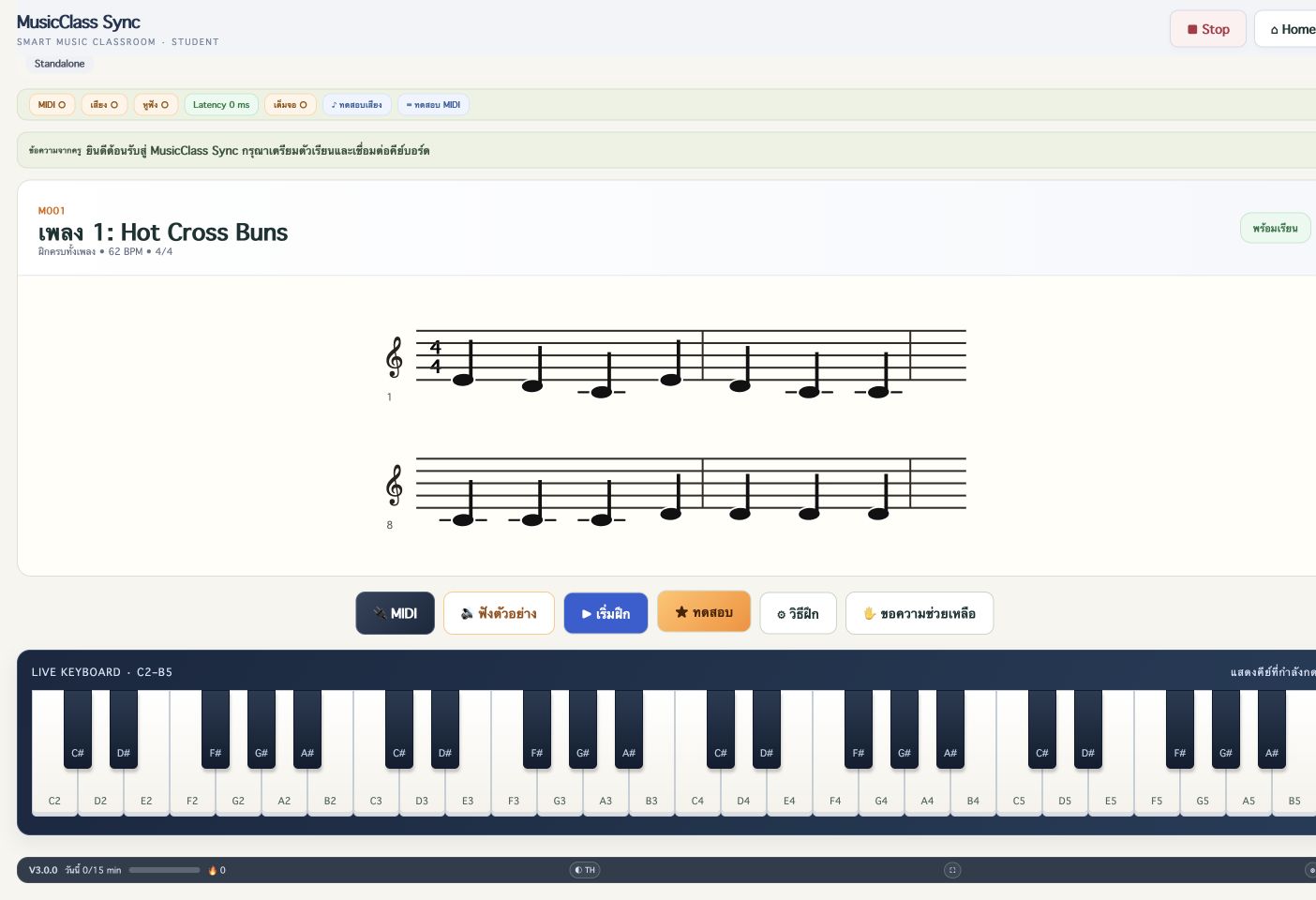
Hot Cross Buns displays notation, listening, practice/test controls and a C2–B5 keyboard. This is the Teacher Practice preview and does not submit student results.
 View full image ↗
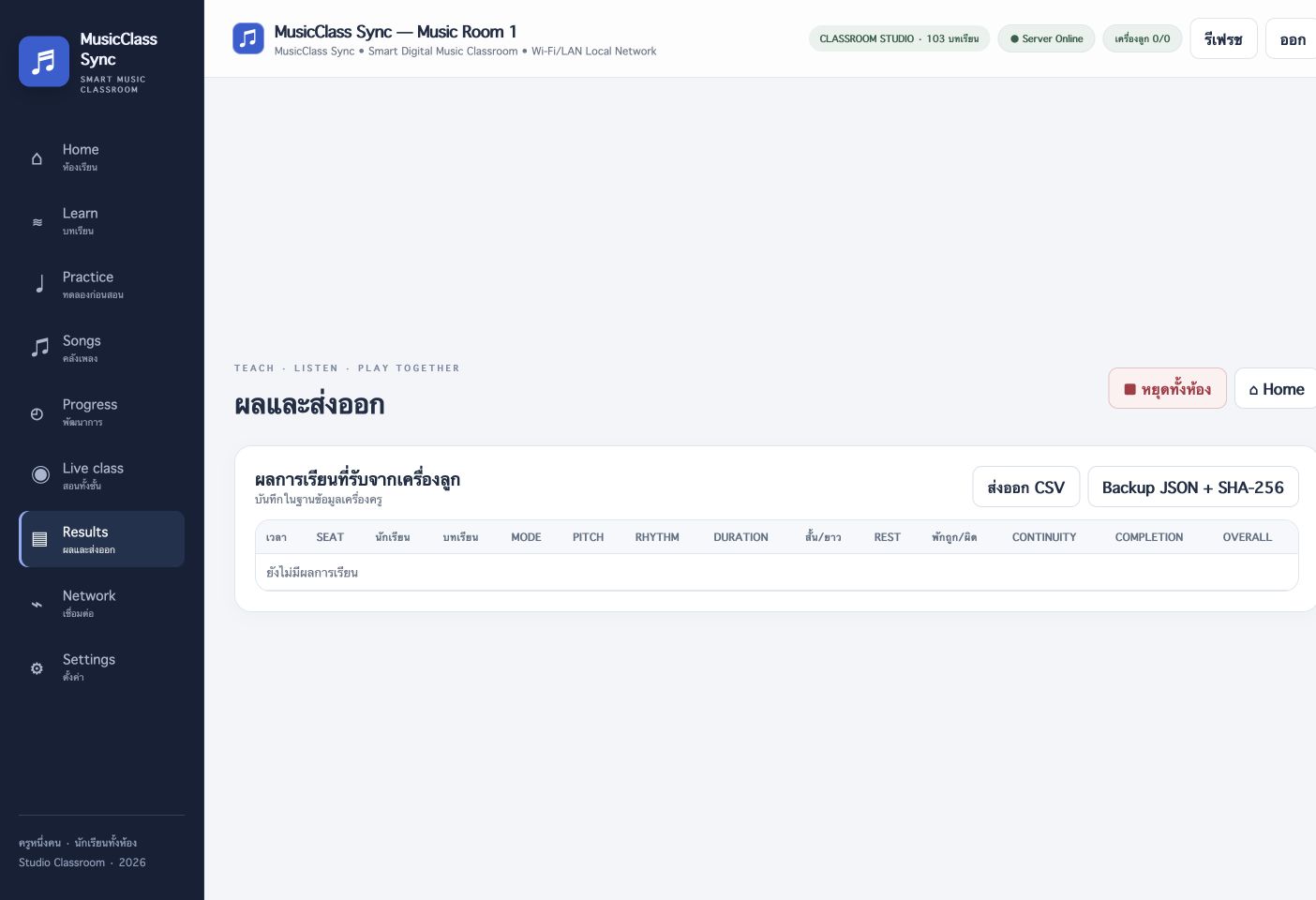
The results table separates Pitch, Rhythm, Duration, Rest, Continuity, Completion and Overall, with CSV and JSON + SHA-256 backup controls. No student-client results have been received.
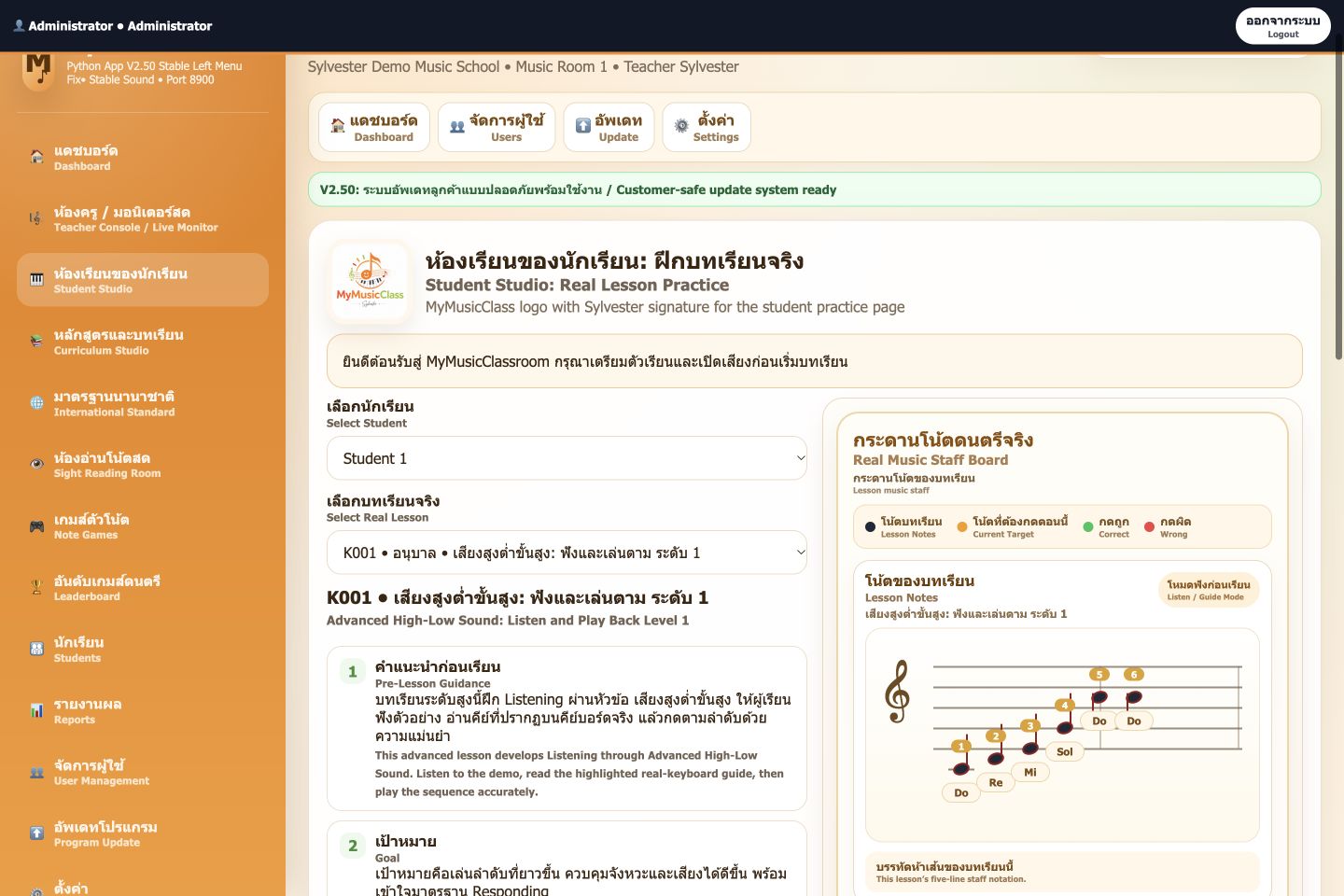
Explore staff-based practice, sight-reading and skill games.
View full image ↗Choose a student and lesson, read guidance and goals, then follow lesson notation and played answers with distinct target, correct and incorrect colours.
 View full image ↗
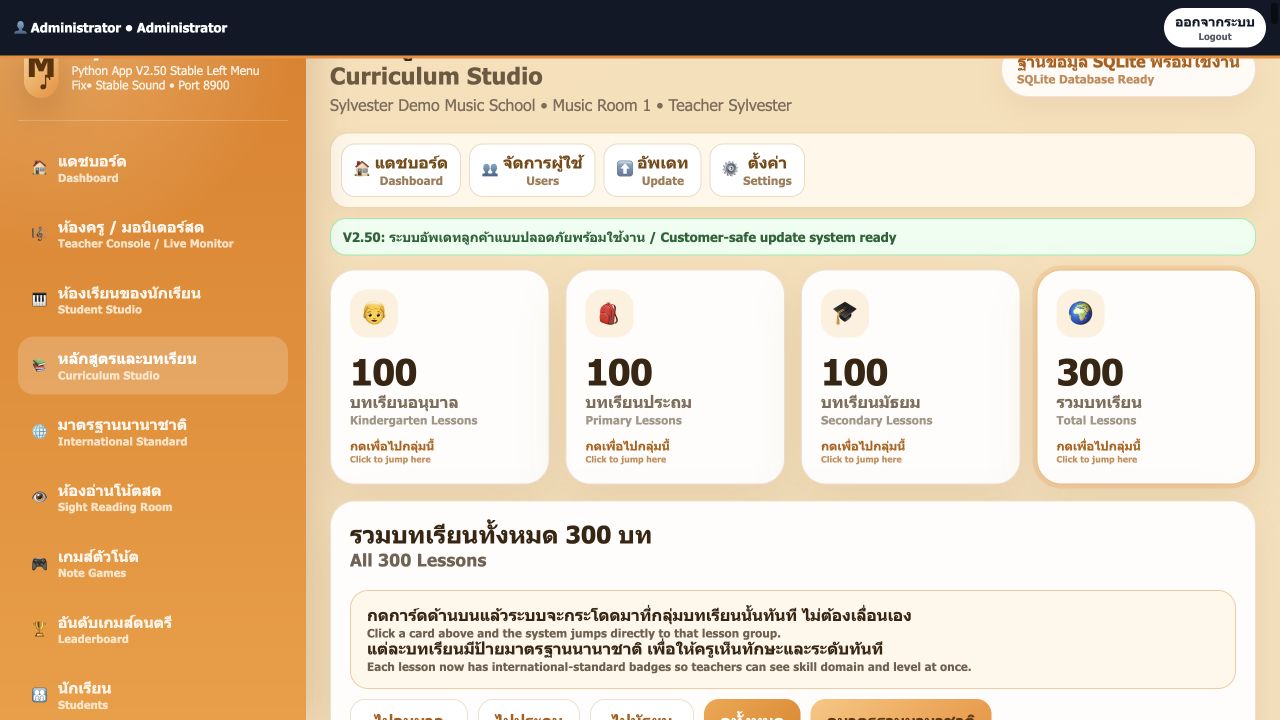
Browse kindergarten, primary and secondary lessons with skill information and lesson practice.
 View full image ↗
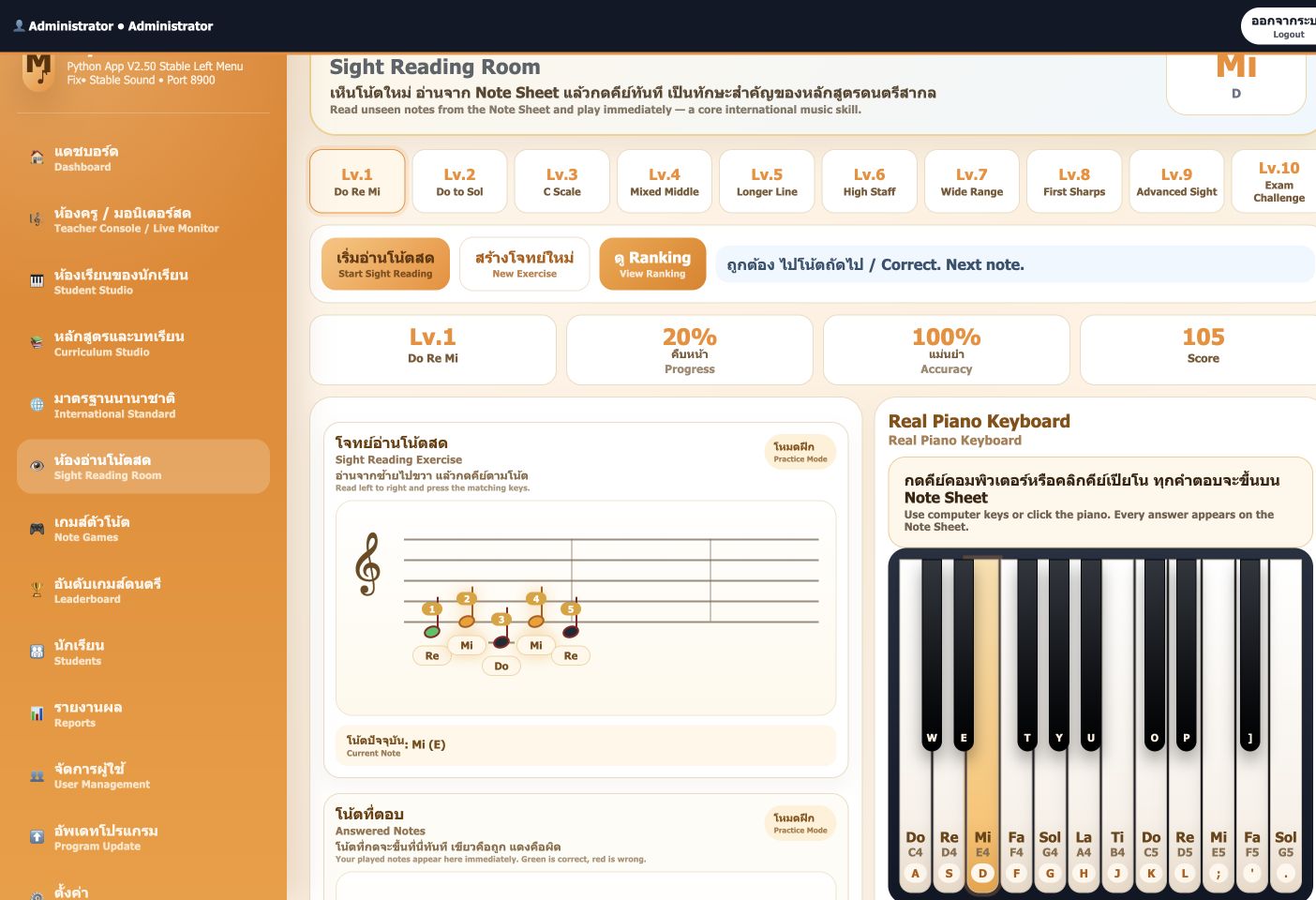
Read left to right and answer using on-screen piano keys. Current note, progress, accuracy and score are visible; this capture follows an actual first-note response.
 View full image ↗
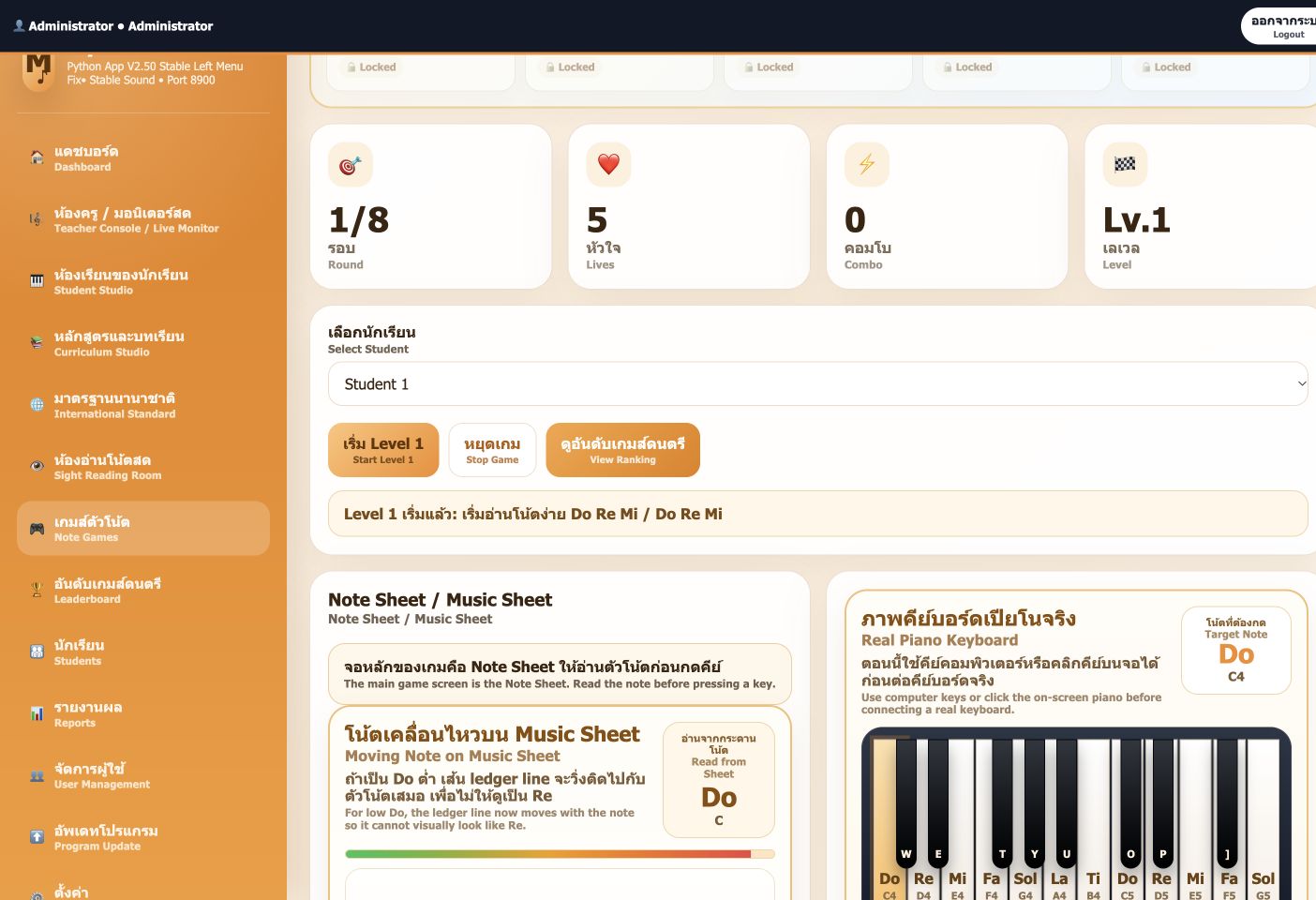
Practise through rounds, lives, combos and level unlocks, with music staff and on-screen piano keys for responses.
 View full image ↗
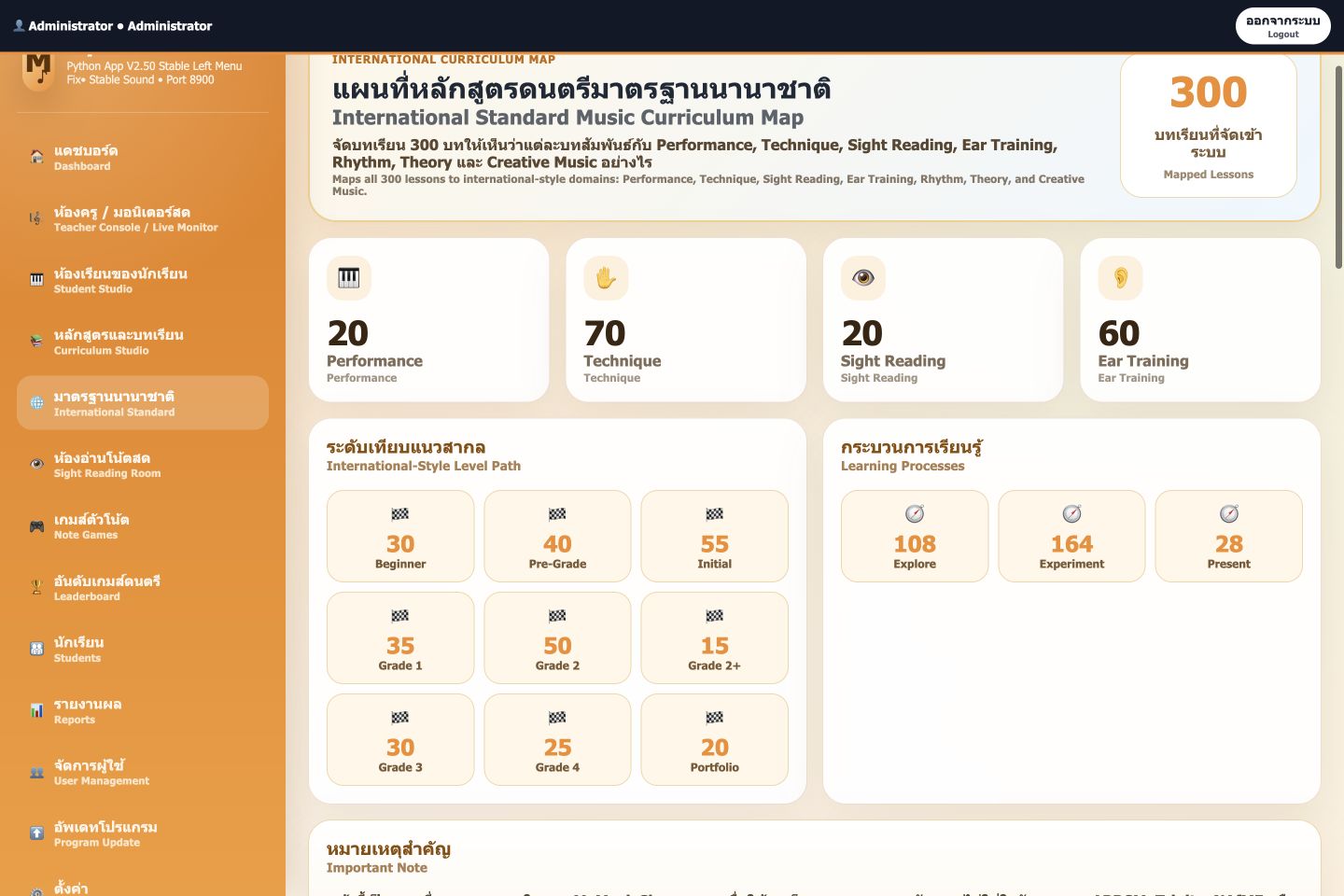
The curriculum view organizes musical skills and learning levels with direct lesson entry points for planning a learning sequence.
 View full image ↗
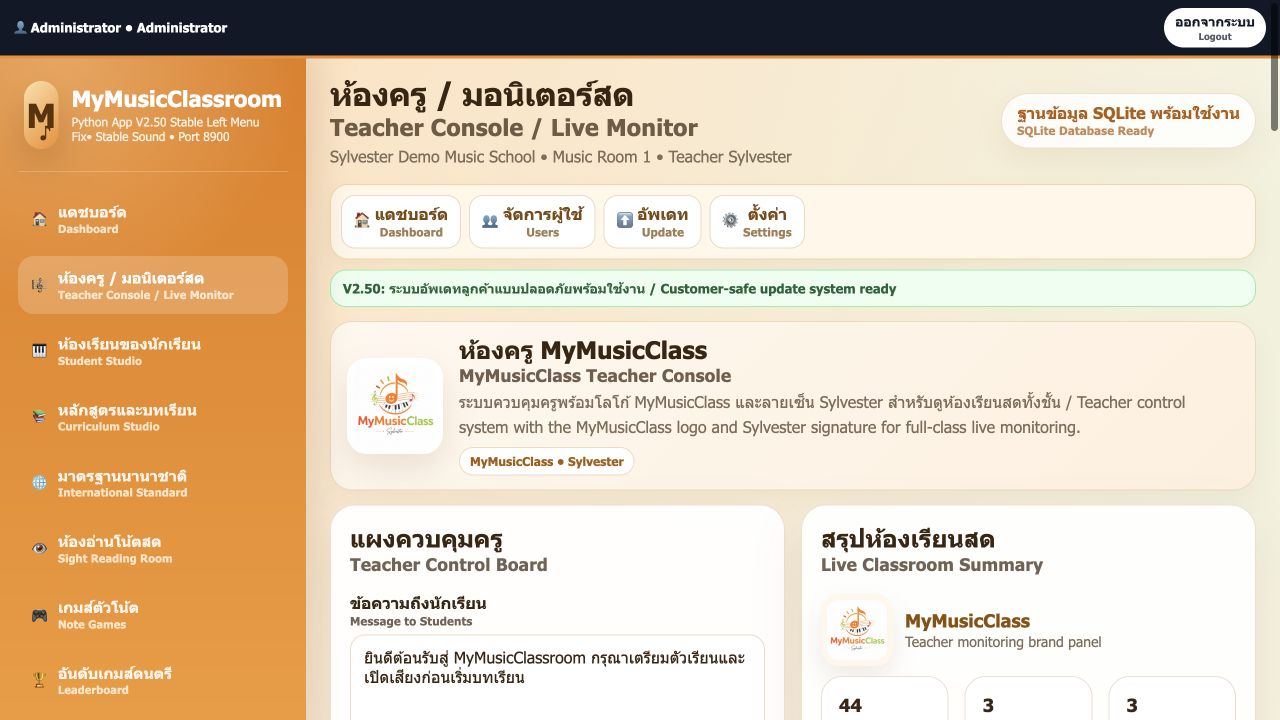
A separate teacher console for messages and student monitoring, shown with application demo data.
Actual application captures from isolated test copies, using demo students and scores. MusicClass Sync and MyMusicClassroom have separate data. Physical MIDI devices and a real classroom were not tested.
Discuss users, equipment, existing data and required processes to determine the appropriate edition and installation.