See work across the class
Review student screens to identify who is following the task, who is stuck and who needs guidance, then focus on the appropriate workstation.
See the classroom from the teacher screen, direct the whole class or help one workstation, start a shared lesson and follow students while they work.
LAN classroom control • Whole class / Individual workstation
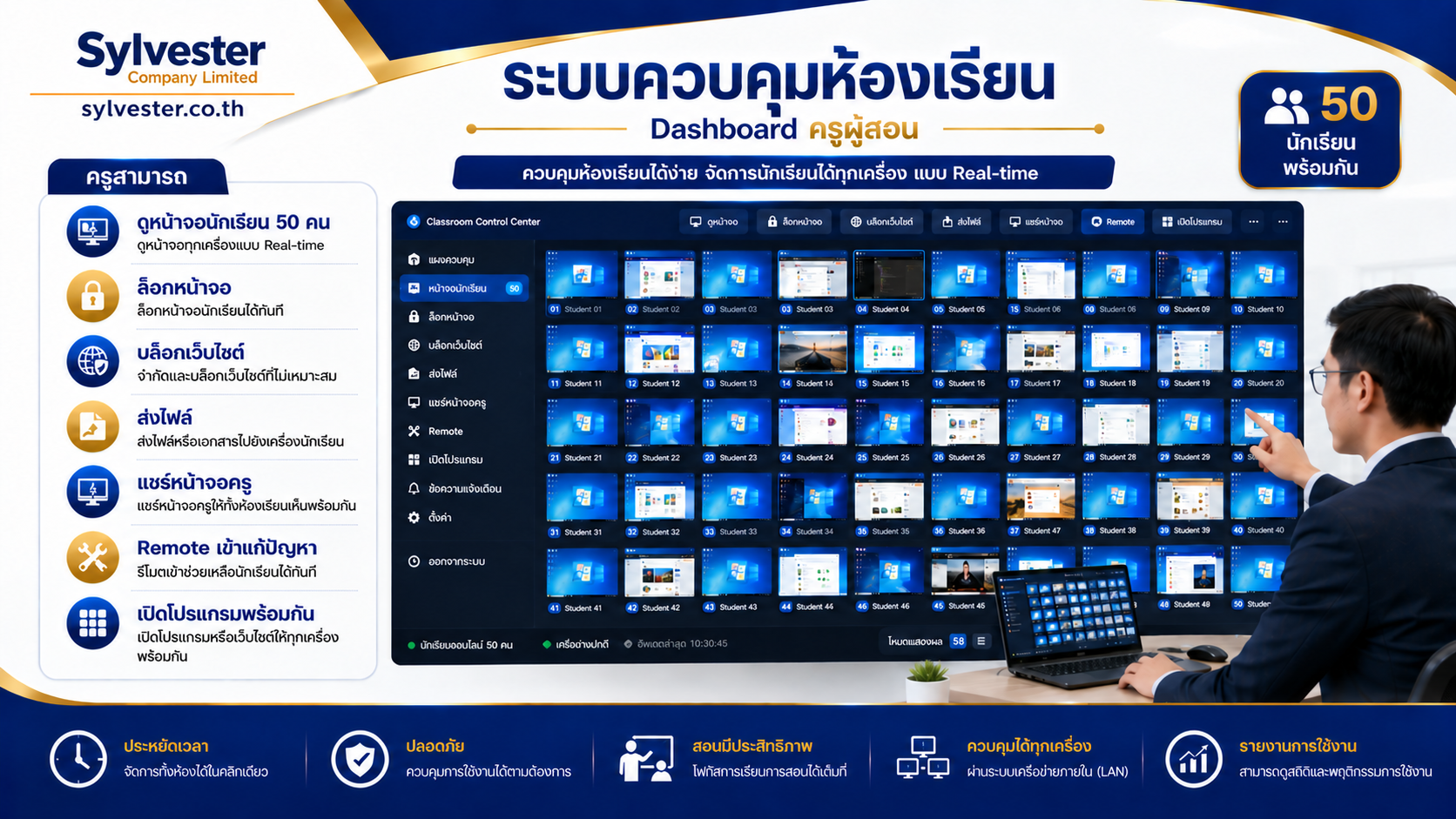
Teachers can spend more time teaching and helping learners when they can prepare activities without visiting every workstation.
Review student screens to identify who is following the task, who is stuck and who needs guidance, then focus on the appropriate workstation.
Open lessons or approved applications for the target group, reducing the steps each student needs to take to find files or prepare a workspace.
Share the teacher screen with student computers so learners can follow menus and working steps on their own displays.
Lock and unlock student screens at appropriate points so learners can pause their work, listen and then continue.
The presentation describes remote assistance for viewing and helping a target workstation, reducing time spent waiting for a teacher to reach the desk.
Connect teaching with student records, attendance, assignment files, assessments and reporting for follow-up across sessions.
Capabilities described in the supplied presentation and the teacher interface inspected locally. Student-client behavior depends on the edition and installation.
Review multiple student screens together and select a workstation or group for closer attention during practical work.
Pause the target group and send announcements or instructions when explaining rules or changing activities.
Demonstrate on the teacher computer and open the tools required for the lesson across the class.
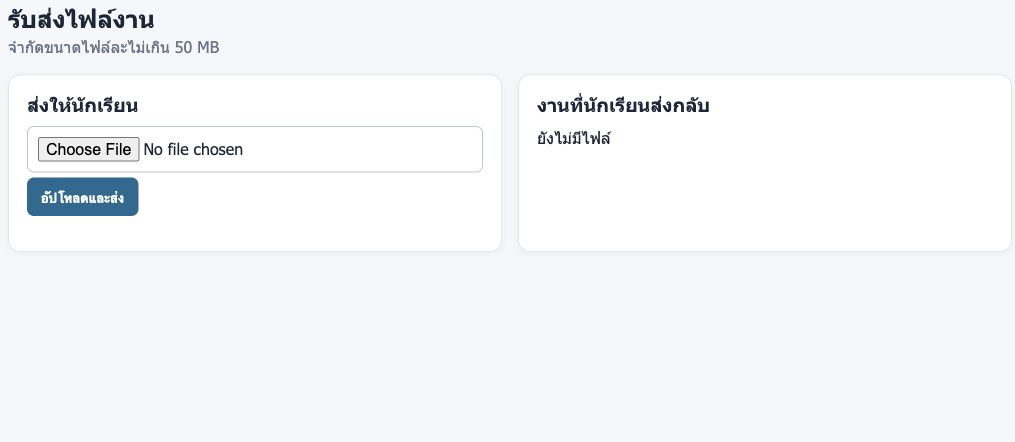
Send teaching documents or practice files, then review returned assignments in the teacher workspace.
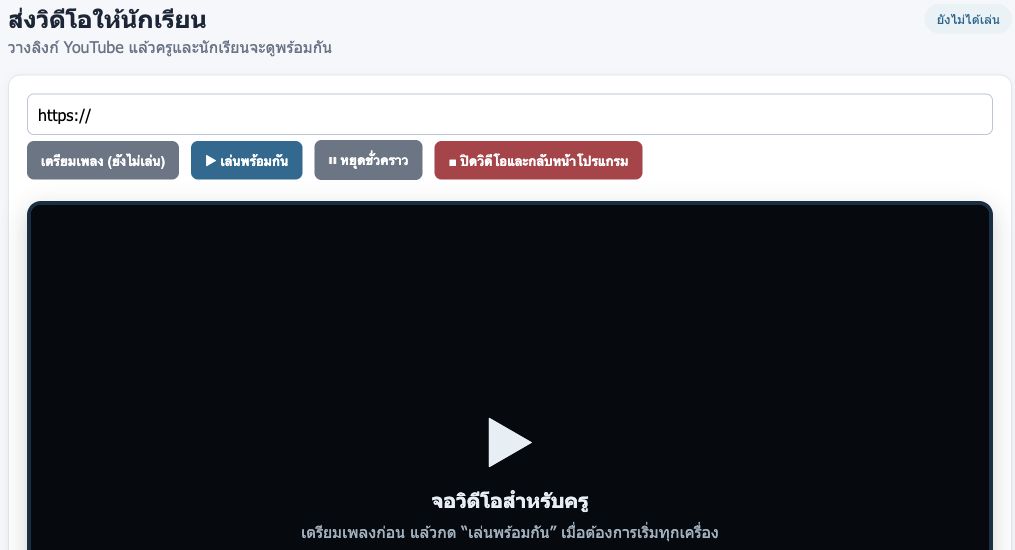
Prepare media, then control playback and pause from the teacher screen to match explanations to the content students are viewing.
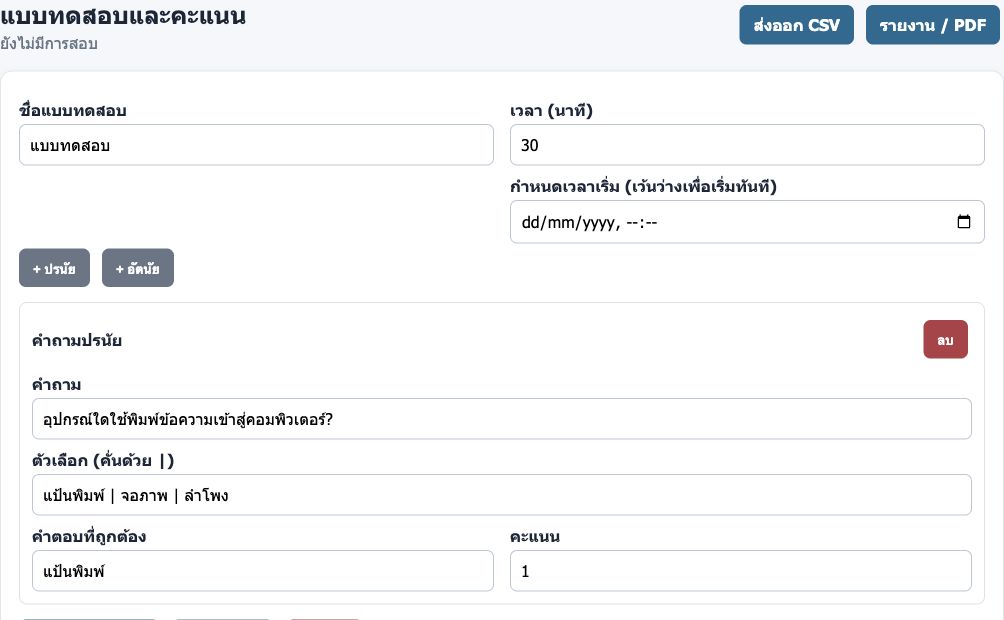
Prepare questions, set timing and review answers and scores alongside the student register and attendance history, with data export controls.
The supplied presentation describes blocking inappropriate sites and helping workstations remotely. Check client editions and school usage policies before installation.
The presentation covers classroom control software and Server / Thin Client / PXE Boot arrangements for 50 seats. Choose an arrangement that fits existing school equipment and networking.
The central workspace for monitoring, selecting groups, distributing lessons and following learners.
Connect teacher, server and student computers for classroom commands and data exchange.
Students receive lessons and teacher commands while using their own display, keyboard and mouse.
An installation option described in the presentation for centralized system care, with resources assessed against actual teaching workloads.
Check workstation status and student records, prepare teaching files and select the class.
Share the teacher demonstration and lock screens when students need to listen.
Unlock screens, monitor the class and help the workstations that need assistance.
Collect assignments or use an assessment, review attendance and prepare follow-up reports.
Discuss seat count, existing hardware, networking and teaching applications to assess the teacher computer, server, clients and required controls. The presentation describes fewer maintenance steps and potential Thin Client space and energy savings. Actual outcomes depend on hardware and usage.
Discuss classroom installation ↗A distinct package for this product. Explore its features and actual application screens on this page.
Explore application screens ↓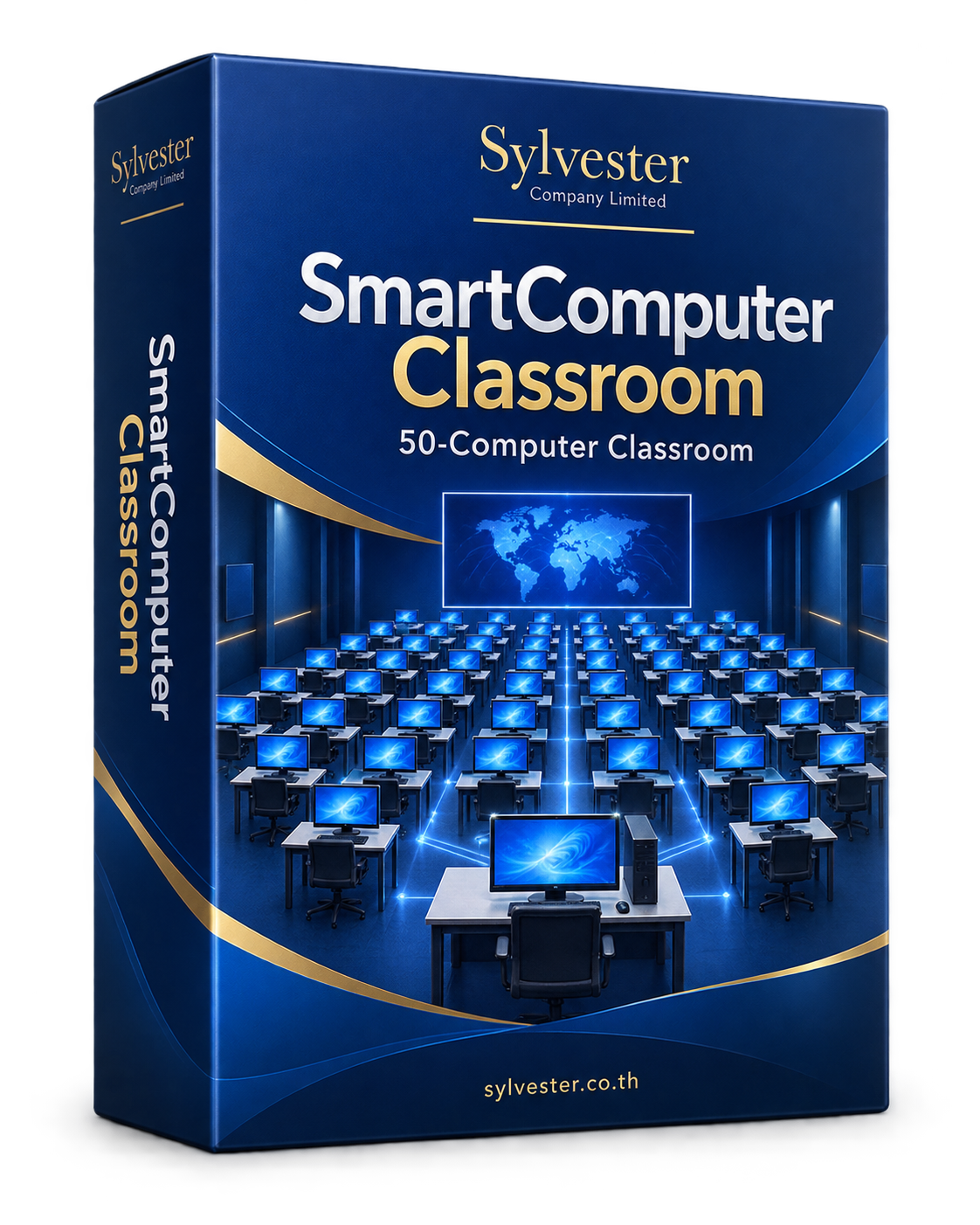
Large images with a description for every screen. Open any image to inspect it at full size.
Target the class or individual workstations, teach from the teacher screen and manage focus during explanations.
 View full image ↗
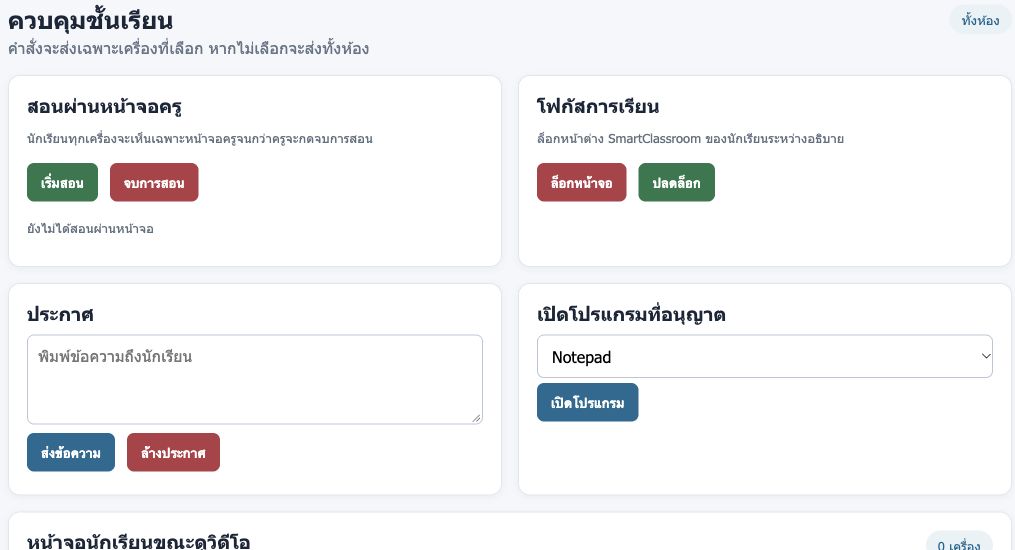
A single workspace for starting and ending teacher-screen teaching, locking or unlocking student windows, announcements and allowed applications.
 View full image ↗
The teacher video workspace includes a link input, viewing area and controls to prepare, play together, pause and return to the application.
 View full image ↗
Switch between grid and list, search workstations, filter status and select targets for screen monitoring. No student workstations are connected in this capture.
 View full image ↗
Manage student identifiers, seat numbers, classes and assigned workstations with CSV import/export controls. The register is shown before server data is connected.
Prepare activities and review learning information in dedicated workspaces.
 View full image ↗
Set the assessment title, duration and start time; add multiple-choice or written questions, with areas for the question library, history, answers and scores.
 View full image ↗
Separate outgoing teaching files from student submissions. The interface provides file selection and upload, with a stated 50 MB limit per file.
 View full image ↗
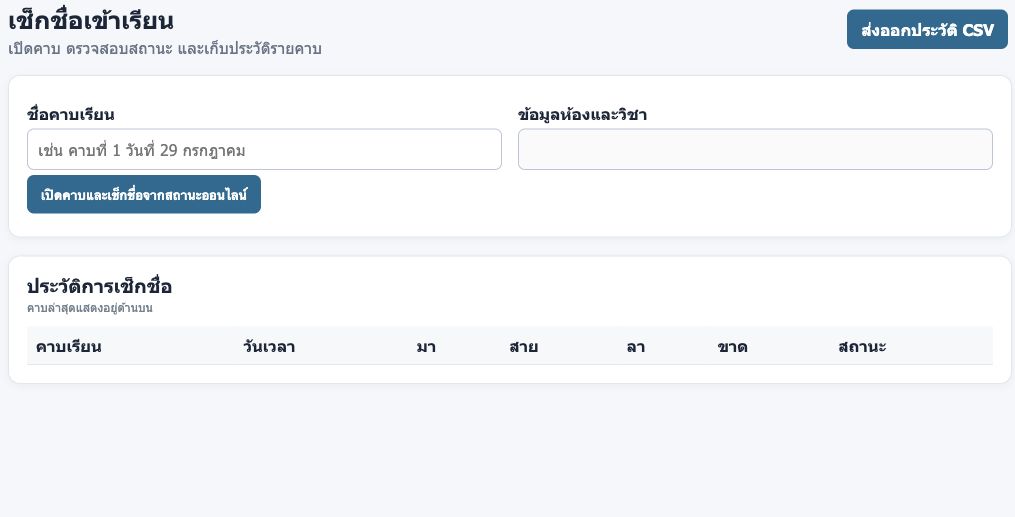
Name a session, take attendance from online status and review present, late, leave and absent totals with CSV export tools.
 View full image ↗
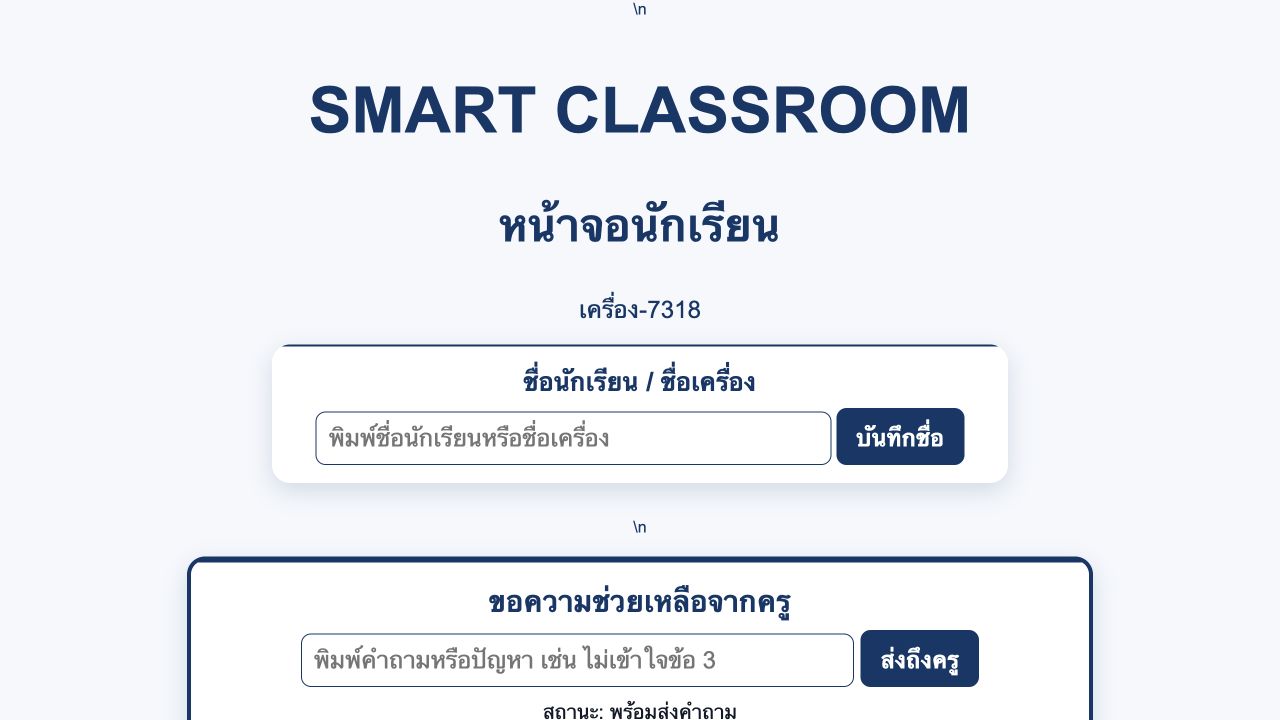
Students identify their workstation and send help requests from their own screen.
 View full image ↗
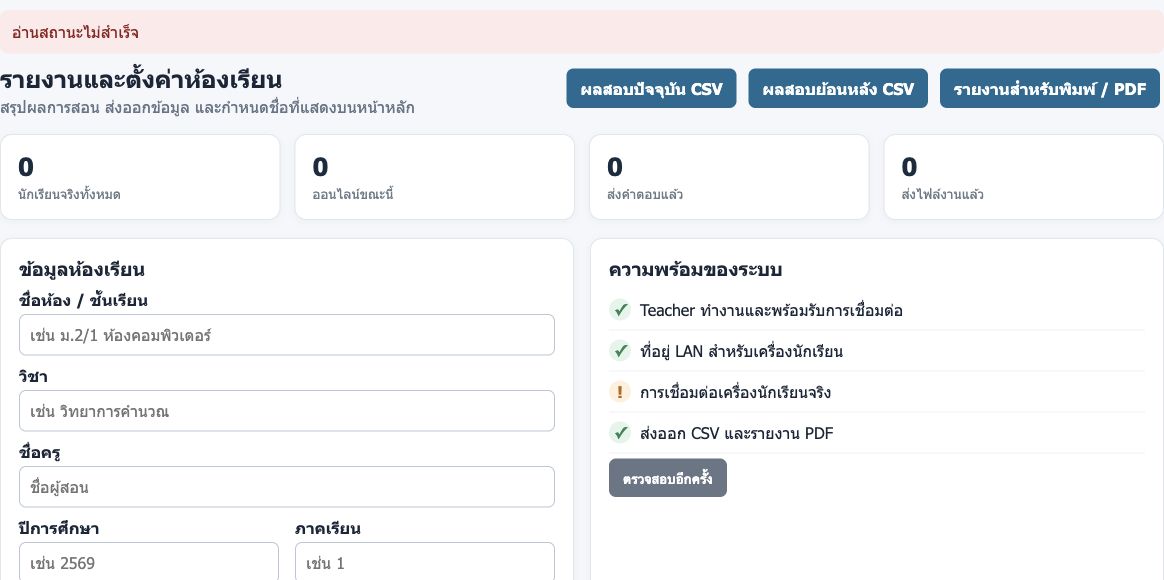
View online students, answers and submissions alongside current/historical CSV and print/PDF report controls, plus class, subject, teacher and academic-period fields. Live reporting requires the classroom server.
The 50-seat classroom illustration comes from the user-supplied presentation, with its company branding updated to Sylvester using an image editing tool. It illustrates the system concept, not a live 50-client test. Remote assistance and website policy descriptions are sourced from the presentation and require edition/installation checks. The actual interface captures below were opened locally, without a complete physical LAN classroom test.
Working-area captures from the current teacher interface, with the header cropped to focus on its tools. The LAN server and physical student computers were not tested. The student view was opened locally from the Sylvester SmartFinal25:06 edition.
Discuss users, equipment, existing data and required processes to determine the appropriate edition and installation.